
You likely didn’t graduate law school having mastered Microsoft Office. And yet it’s an amazing set of tools that law firms rely on daily. Word, Outlook, and Excel can feel overwhelming. And if you’re like most people, you use the same handful of buttons or options and ignore the rest.
The good news? you don’t need to be a Microsoft certified expert to tame lost emails, document versions, or column chaos. A few solid hacks make these tools powerful assistants that work for you.
Master these simple tips and you'll be on your way to Microsoft wizardry.
Note: these tips work best in the desktop version of each app, rather than the browser version.
Shortcut Your Sanity
These keyboard shortcuts will help you function at laser speed across Office, Excel and Outlook:
- Ctrl + Z – undo your most recent accident (we’ve been there.)
- Ctrl + C / Ctrl + V – copy / paste. A classic treasure.
- Ctrl + N – start a new document. We know you’re tackling 20 things at a time.
- Ctrl + Arrow keys – Jump to the end of a row or column fast.
- Ctrl + Shift + L – Instantly apply or remove filters.
- Alt + = – AutoSum that column of numbers like a mathematician genius.
- Ctrl + ; – Insert today’s date without checking your calendar (again).
- Ctrl + H – Find and replace. Basically digital White Out.

Quick Access Toolbar: Your Command Center
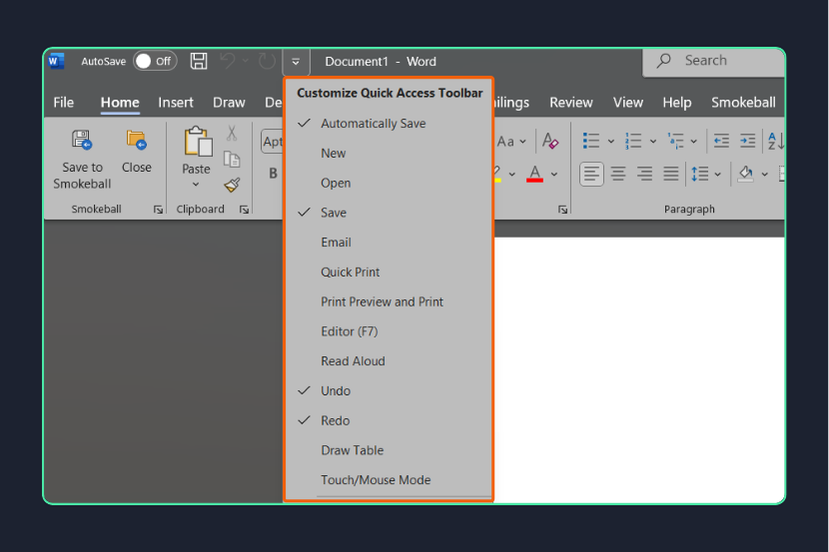
You see that tiny bar at the top of your Outlook, Word or Excel? It contains simple, yet important actions like save, undo, redo, etc. But here’s the best part, you can customize it.
- Right-click on the Quick Access Tool bar and click “customize”
- Select anything you use often! Like Sort, Insert Signature, Track Changes, etc.
This positioning of the toolbar can also be changed to make it more convenient by right clicking the toolbar again and selecting “Show Below the Ribbon.”
Find & Replace: Ctrl + H
Misspell a client’s name? Need to change all mentions of “Client A” to “Client B”? The Find and Replace function selects all the mentions of the mishap and replaces it with your correct information.
Note: Find & Replace is a helpful tool, but for true accuracy and time savings, explore your legal practice management software’s document automation. Smokeball’s library of 20,000 agency and court forms autofill the data directly from the client file and adjust for subject/verb agreement and pronouns.
Excel Filters: End the Scrolling
Filters allow you to quickly display only the data you need. Think of them as a legal assistant with a resume full of sorting experience.
- Start with the Filter Button (or your new keyboard shortcut): Click anywhere in your data, then go to the "Data" tab and hit "Filter." Dropdown arrows will appear at the top of each column. Click the dropdown of the column you’re looking to sort and select the information you’re looking for.
- Use text Filters for key words: If you’re looking through a list of case notes or document titles, click the filter arrow on that column, hover over "Text Filters," and choose "Contains." Then type in a keyword like “motion,” to only see rows that mention that word.
Schedule your Outlook Delivery Times
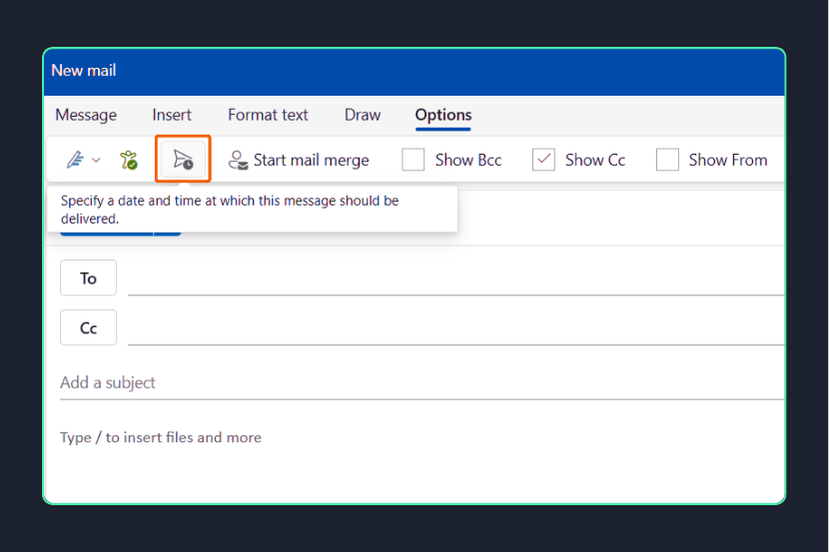
It’s one of those 11p.m. work nights, but you don’t want your client getting emails that late. Using Delay Delivery to schedule emails allows you to work your hours without disturbing someone else's.
- Compose your message (no matter the time!)
- Go to Options > Delay Delivery and choose when to send.
Microsoft Word Document Compare: Review Like a Pro
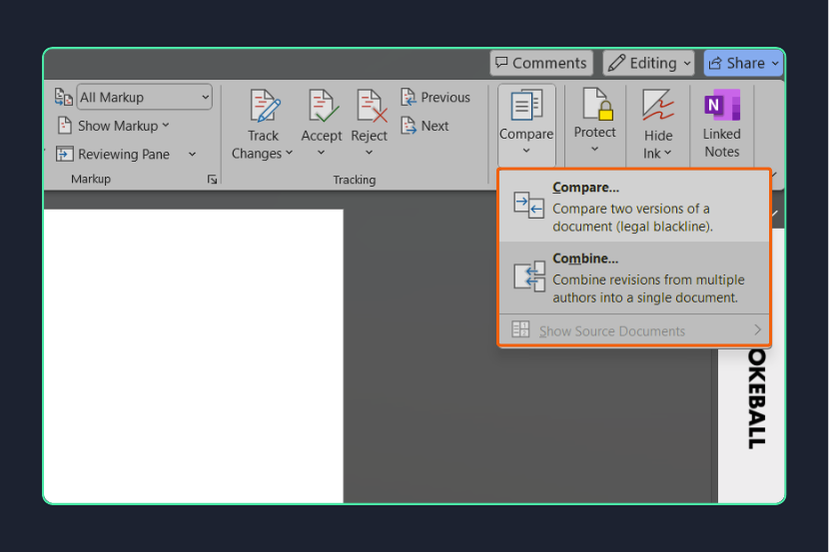
Redlining opposing counsel’s changes or reviewing colleagues’ document edits? Don't leave it up to manual guesses. Word’s Compare feature creates a second, marked version of the document that highlights all the new changes and differences.
- Go to Review > Compare > Compare two versions of a document.
A Little Automation Goes a Long Way
You’re likely tired of typing the same signature block, case caption, or “WHEREAS” clause on repeat in Word. Quick Parts and AutoText are your built-in shortcuts to stay sane. These tools allow you to save those repeat offenders and pop them into any Word document with a click.
*Caution: Quick Parts does not remember the formatting of the document that it originally came from; it will adapt to the document that you paste it into!
Tips for Getting Started:
- Save Templates & Clauses: Draft a clean version of a commonly used provision, highlight it, then go to Insert > Quick Parts (icon in the “Text” section) > Save Selection to Quick Part Gallery. Now it’s ready to reuse anytime.
- Signature Blocks & Case Styles: Save your signature block, case captions, or any boilerplate language you regularly use. One click and it's there—no digging through old files.
- Use AutoText for Even Faster Access: AutoText is like Quick Parts’ speedier cousin. Assign a short name (like “sigblock”) and just type that, press Enter or F3, and boom—it drops right in.
- Heads-Up on Formatting: Be aware that Quick Parts will inherit the formatting of the current document, not the one it came from. Always double-check that your inserted text matches the style of your current doc.
With these quick Microsoft Office hacks, you’ll save time and find your data more digestible. Pair these tips with Smokeball, and your email management and document creation will be unrivaled.